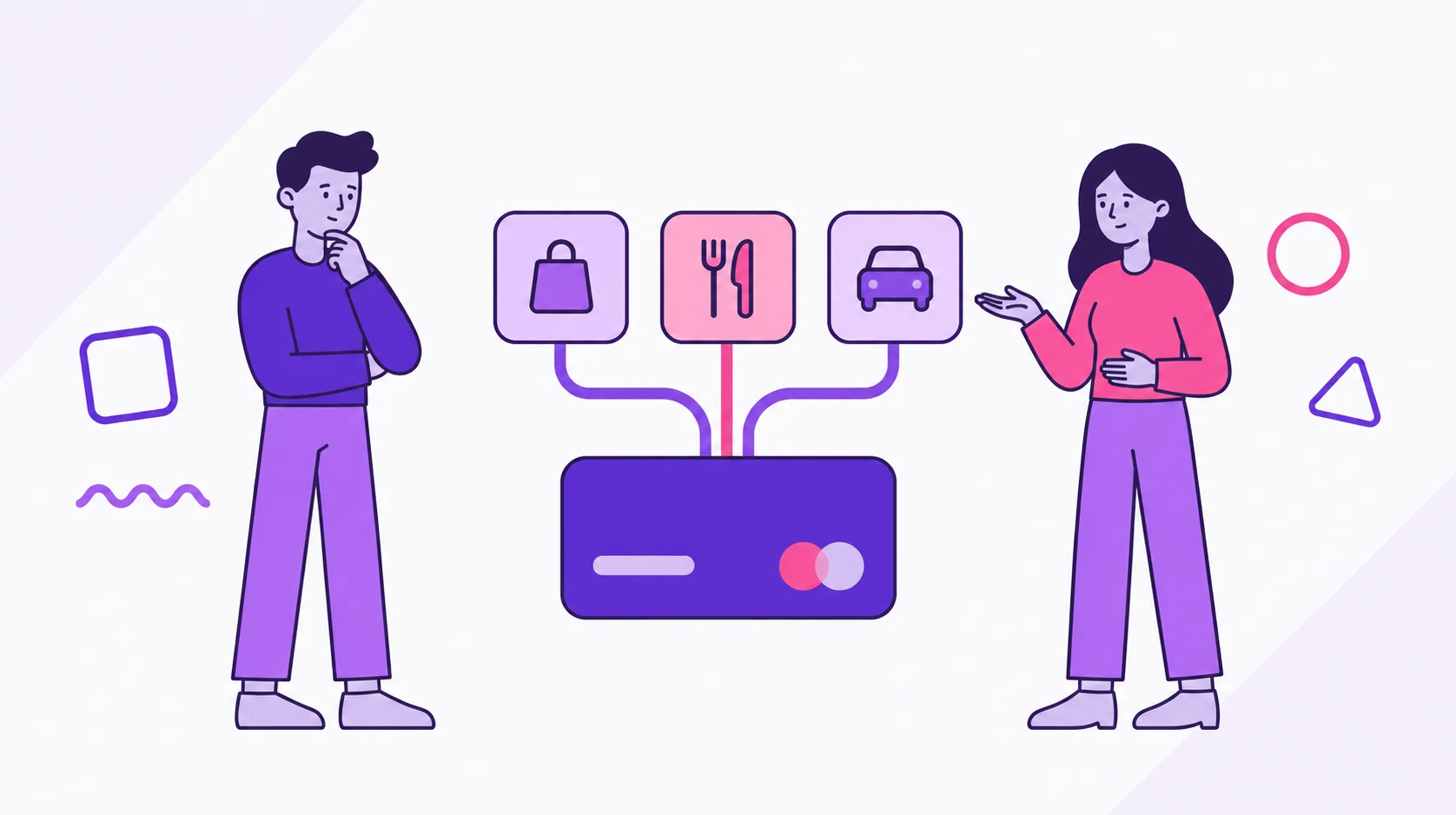
Cards in dividi help group bills that belong to a card statement. They do not store your real card number or CVV.
That difference is the whole point. dividi is not acting as your bank or card issuer. It gives you a clear label for spending so you and your partner can read the statement side of the month together.
What is the Cards tab for?
The Cards tab works like a simple wallet. You create a card representation with bank, nickname, network, and color. Then you link bills to that card when they belong to its statement.
The app states this directly: the feature is an expense organizer and does not store real card data such as card number or CVV.
A bill without a card still works normally. A bill with a card contributes to that card’s monthly statement view.
How do you add a card?
Open the Cards tab. If there are no cards yet, use New card. If you already have cards, use the add button.
The form asks for:
- Bank: the institution name.
- Nickname: the name you use to recognize the card.
- Network: the card network.
- Card color: the visual color in the app.
The form also has an optional Payment reminder field for the day you want a statement alert; our guide to due date reminders in dividi explains how that alert works.
It does not ask for card number, expiration date, or CVV. Use a nickname both partners can understand, such as “Chase shared” or “Amex personal,” instead of “Card 1.”
The first card can become the default. You can also set another card as default later so it appears first.
How do you link a bill to a card?
The link happens in the bill flow.
When adding or editing a bill, use the card section and choose the card that belongs to the statement. The app guidance is clear: associate the card only if the expense belongs to a card statement.
If the purchase was debit, cash, ACH, Venmo, Zelle, or another non-card payment, leave it as No card. The bill stays in the account and outside statement tracking.
This one choice is what makes the card view useful. A card label with no linked bills will not tell you much. A card label used consistently becomes a monthly statement summary.
What does Invoice details show?
With linked bills, open Invoice details from the card view.
The overview shows:
- Invoice total for the period.
- Paid and pending amounts.
- Top expenses.
- Installments.
- Subscriptions.
- Category breakdown.
Tapping a transaction opens the bill detail. That makes the card view a reading layer, not a separate ledger. The bill still belongs to its account; the card is the grouping that explains how it appeared on the statement.
What happens if you delete a card?
Deleting a card removes the card representation. Linked bills remain in dividi and are only unlinked from that card.
That protects the month history. You can clean up card labels without deleting the underlying bills.
If the deleted card was the default, dividi can move the default role to another card during the deletion flow.
How does this help partners review spending?
A card statement can blur two separate questions: what was charged, and how should it be split.
dividi helps keep them apart. The card view answers what landed on the statement. The bill split answers who covers the cost. Transfers help you settle up when who paid and who owes are not the same.
This is especially useful when one partner’s card carries several shared bills. Instead of opening the bank app and reading line by line, both people can see the same grouped bills in dividi.
Can Divi help with card bills?
Yes. In dividi Premium, Divi can draft a bill from voice and include a card when she can identify it.
For example, you can say a card-related expense naturally and then review the draft before saving. Nothing goes to the month until you confirm or adjust it.
To understand the voice flow, read Who is Divi in dividi?.
FAQ
Does dividi store my card number?
No. Cards are labels for organizing bills. The app stores details like bank, nickname, network, and color, not the real card number or CVV.
Do I have to link every bill to a card?
No. Link only bills that belong to a card statement. Leave debit, cash, bank transfer, or other non-card payments as No card.
If I delete a card, do I lose the bills?
No. Linked bills remain in the account. They are simply unlinked from that card.
Can I track more than one card?
Yes. The Cards tab shows your cards and their monthly spending. You can move between cards and review each statement view separately.
Can card bills be installments?
Yes. The card purchase flow can handle installment purchases, and Invoice details can show installments when linked bills have that recurrence.
Next step
Create only the cards you will actually use this month. Give each one a nickname that both partners recognize, then link new card bills as they are added.
For the full monthly picture, pair cards with Smart Budget statuses. If you are still setting up the app, start with Move from spreadsheets to dividi.
To organize your next card statement, download dividi. To compare Premium features such as Divi voice entry, see dividi plans.